Simple Volume Tracker in C++
This tutorial builds a deliberately small C++ plugin that reacts to
accepted Potts pixel copies. It is modeled after CC3D’s real
VolumeTracker plugin, but it does not replace it. The real
VolumeTracker is loaded automatically by volume-related plugins and
is responsible for keeping CellG::volume correct. Loading a second
plugin that also changes volume would corrupt the simulation state.
For that reason, the first version of SimpleVolumeTracker only prints
what would happen to volume when a lattice site changes. This keeps the
example safe while introducing the most important plugin mechanism:
registering a lattice monitor with Potts3D.
In this tutorial we generate the plugin directly inside the main CC3D
source tree, not in DeveloperZone. This keeps the example close to the
core plugin layout and makes it easier to compare with the built-in
VolumeTracker plugin. DeveloperZone configuration is covered
separately in Configuring DeveloperZone Projects for compilation.
What This Plugin Demonstrates
A lattice monitor is a plugin that receives a callback whenever the cell
field changes. In CC3D, the cell field is a WatchableField3D<CellG*>.
When Potts3D accepts a pixel copy, it calls cellFieldG->set(...).
The field then notifies registered watchers by calling their
field3DChange method.
For an accepted pixel copy, the callback arguments have the following meaning:
ptis the target lattice point of the copy.oldCellis the cell pointer currently occupyingptbefore the copy is applied.newCellis the cell pointer that will occupyptafter the accepted copy is applied.
If newCell is not nullptr, that cell gains one pixel as the copy
is applied. If oldCell is not nullptr, that cell loses one pixel.
A nullptr cell pointer represents Medium.
The real VolumeTracker uses the same idea:
void VolumeTrackerPlugin::field3DChange(
    const Point3D &pt,
    CellG *newCell,
    CellG *oldCell
) {
    if (newCell)
        newCell->volume++;

    if (oldCell)
        if ((--oldCell->volume) == 0)
            deadCellVec[pUtils->getCurrentWorkNodeNumber()] = oldCell;
}
Our first version will observe the same event but will not mutate volume.
Tutorial Prerequisites
This tutorial assumes that:
you have cloned the CompuCell3D repository, for example to
~/src-cc3d/CompuCell3D;you can build CompuCell3D from source on your platform;
you can launch Twedit++ from the same environment used for the build.
If you have not completed the build setup yet, follow the platform build instructions first:
Windows: Windows
macOS: Mac - OSX
Linux: Linux - Ubuntu
Generate the Plugin Skeleton
Launch Twedit++. From the CC3D C++ menu, select
Generate New Module.... Twedit++ opens the new-module dialog:
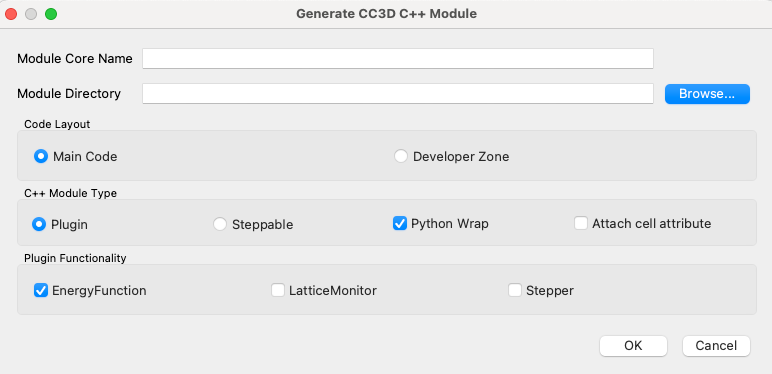
Fill in the dialog as follows:
Module Name:SimpleVolumeTrackerModule Type:PluginPlugin Functionality:LatticeMonitorModule Directory: the CC3D plugin source directory, for example~/src-cc3d/CompuCell3D/CompuCell3D/core/CompuCell3D/plugins
For this tutorial, choose the main CC3D source layout, not DeveloperZone. DeveloperZone is often a better place for extension modules in normal development, but here we intentionally work in the main source tree so the example mirrors the built-in plugin layout.

After you click OK, Twedit++ generates boilerplate source files and
updates the build files. The generated code should compile, but it does
not yet implement useful behavior.

The Important Generated Pieces
For a lattice-monitor plugin, the generated class should inherit from
Plugin and CellGChangeWatcher. The important method is:
void SimpleVolumeTrackerPlugin::field3DChange(
    const Point3D &pt,
    CellG *newCell,
    CellG *oldCell
);
The plugin also needs to register itself with Potts3D during
init. The generated code should contain logic equivalent to this:
void SimpleVolumeTrackerPlugin::init(
    Simulator *simulator,
    CC3DXMLElement *_xmlData
) {
    potts = simulator->getPotts();
    potts->registerCellGChangeWatcher(this);
}
This registration is what connects the plugin to lattice changes. Without
it, field3DChange will never be called.
Implement field3DChange
Replace the generated field3DChange body with a simple observer. This
version prints which cell gains a pixel and which cell loses a pixel:
void SimpleVolumeTrackerPlugin::field3DChange(
    const Point3D &pt,
    CellG *newCell,
    CellG *oldCell
) {
    if (newCell) {
        cerr << "Cell id " << newCell->id
             << " gains one pixel at " << pt << endl;
    } else {
        cerr << "Medium gains one pixel at " << pt << endl;
    }

    if (oldCell) {
        cerr << "Cell id " << oldCell->id
             << " loses one pixel at " << pt << endl;
    } else {
        cerr << "Medium loses one pixel at " << pt << endl;
    }
}
This code checks both pointers before accessing id. That check is not
optional. Medium is represented as a null pointer, so code such as
oldCell->id is valid only when oldCell is not nullptr.
What the Callback Means
The callback is part of applying an accepted lattice assignment. The meaning is:
ptis the target lattice site for the copy.oldCellis the cell currently occupyingptbefore the copy.newCellis the cell that will occupyptafter the accepted copy is applied.newCellgains one lattice site, unless it is Medium.oldCellloses one lattice site, unless it is Medium.
This callback is not called for rejected pixel-copy attempts because the cell field does not change when a copy is rejected.
Build the Plugin
If the plugin was generated in the core source tree, rebuild and install CompuCell3D from your existing build directory. On Linux and macOS this usually looks like:
cd ~/src-cc3d/CompuCell3D_build
make -j 8
make install
If Twedit++ updated a CMakeLists.txt file while generating the
module, CMake may reconfigure automatically at the beginning of the next
build. That is expected. After the plugin has been added to the build
system, later edits to only the plugin .cpp or .h files should
rebuild just the affected target and its dependencies.
Some older macOS development workflows copied installed shared libraries from the CC3D install directory into the active conda environment. Do that only if it is part of the build workflow you used for your platform. For normal plugin-only changes, rebuilding and installing the plugin is the important step.
Use the Plugin in a Simulation
To load the plugin, add it to the simulation XML:
<Plugin Name="SimpleVolumeTracker"/>
For example, in a simple cell-sorting simulation the plugin can be listed with the other plugins:
<CompuCell3D>
    <Potts>
        <Dimensions x="100" y="100" z="1"/>
        <Anneal>10</Anneal>
        <Steps>10000</Steps>
        <Temperature>10</Temperature>
        <Flip2DimRatio>1</Flip2DimRatio>
        <NeighborOrder>2</NeighborOrder>
    </Potts>

    <Plugin Name="Volume">
        <TargetVolume>25</TargetVolume>
        <LambdaVolume>2.0</LambdaVolume>
    </Plugin>

    <Plugin Name="CellType">
        <CellType TypeName="Medium" TypeId="0"/>
        <CellType TypeName="Condensing" TypeId="1"/>
        <CellType TypeName="NonCondensing" TypeId="2"/>
    </Plugin>

    <Plugin Name="Contact">
        <Energy Type1="Medium" Type2="Medium">0</Energy>
        <Energy Type1="NonCondensing" Type2="NonCondensing">16</Energy>
        <Energy Type1="Condensing" Type2="Condensing">2</Energy>
        <Energy Type1="NonCondensing" Type2="Condensing">11</Energy>
        <Energy Type1="NonCondensing" Type2="Medium">16</Energy>
        <Energy Type1="Condensing" Type2="Medium">16</Energy>
        <NeighborOrder>2</NeighborOrder>
    </Plugin>

    <Plugin Name="SimpleVolumeTracker"/>

    <Steppable Type="BlobInitializer">
        <Region>
            <Center x="50" y="50" z="0"/>
            <Radius>40</Radius>
            <Gap>0</Gap>
            <Width>5</Width>
            <Types>Condensing,NonCondensing</Types>
        </Region>
    </Steppable>
</CompuCell3D>
Then run the simulation from the environment where your newly built CC3D is installed:
python -m cc3d.run_script -i ~/src-cc3d/CompuCell3D/CompuCell3D/core/Demos/Models/cellsort/cellsort_2D/cellsort_2D.cc3d
You should see output similar to:
Cell id 148 loses one pixel at (42, 57, 0)
Cell id 149 gains one pixel at (42, 57, 0)
Cell id 162 loses one pixel at (61, 44, 0)
Cell id 83 gains one pixel at (61, 44, 0)
The exact cell ids and points will differ because Potts copy attempts are stochastic.
What You Have Built
This first version demonstrates the mechanics of a lattice-monitor plugin:
Twedit++ generated the plugin skeleton and build-system entries.
The plugin registered itself with
Potts3Das aCellGChangeWatcher.Potts3Dcalledfield3DChangeafter accepted lattice changes.The plugin handled Medium safely by checking for null cell pointers.
In the next part, we will make the plugin more active by changing cell
state from inside field3DChange. That is useful for learning, but it
also introduces ordering and correctness issues that plugin authors must
understand.